
In short
- Instagram’s mobile help page allows up to 20 carousel items.
- The photo help page supports ratios from 1.91:1 to 3:4 at up to 1080 pixels wide.
- Instagram lets you add your own image description for screen readers.
In this article
An Instagram carousel is a single feed post with up to 20 photos or videos that people swipe through. To make one, create a Post, choose Select multiple, arrange your photos or videos, add captions, and share. Instagram's mobile help page allows up to 20 items in a carousel as checked on November 10, 2026. 1 Prepare the sequence before opening the app so each swipe adds something useful.
Plan the sequence before designing
A carousel works as an explanation when the slides have a reason to appear together. Choose a question you can answer through a sequence, such as how to prepare a portfolio brief, compare notebook layouts, or set up a product photograph.
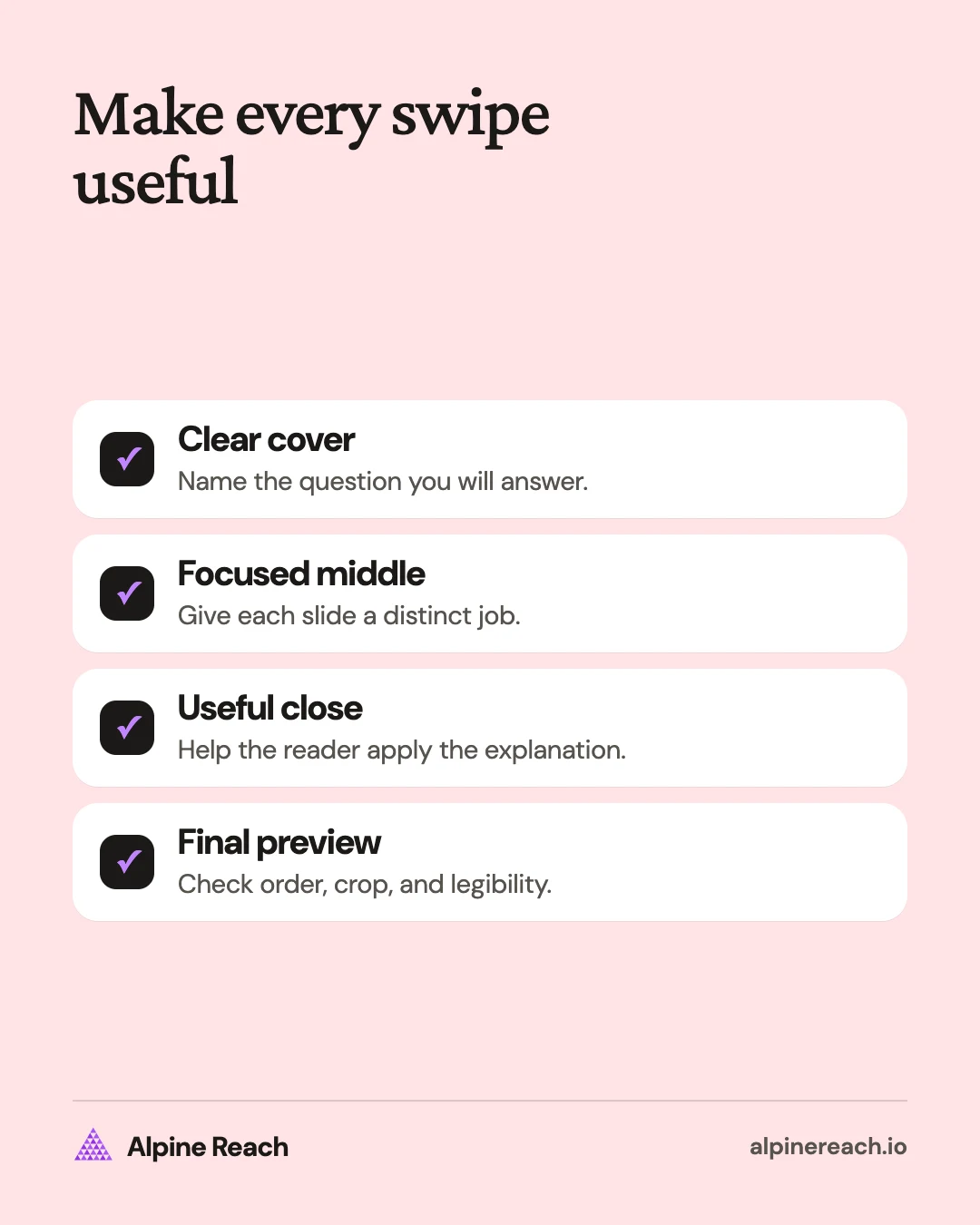
Write a short outline before choosing colors or opening a template. Use an opening that identifies the reader's problem, a middle that explains the answer, and a closing that helps the reader apply it. Stop when the explanation is complete. The item limit is not a target.
For a freelance photographer, the subject might be “Prepare your workspace for a product shoot.” Start with the question, explain the surface, light, and background, show the assembled setup, and close with a preparation checklist. This is an example outline, not a report of a real assignment.
Other useful subjects include a process demonstration using your own work, a comparison of materials, a buying guide, or a service explanation. Choose content you can show accurately. If you are missing evidence for a claim, revise the claim before designing around it.
Choose one size for the whole carousel
Instagram's photo help page currently supports aspect ratios from 1.91:1 to 3:4, up to 1080 pixels wide. Unsupported ratios may be cropped. 2 Aspect ratio describes width relative to height; pixels describe the dimensions of the exported image.
The table shows practical presets within that documented range, checked November 10, 2026. Instagram states the 3:4 and 1.91:1 sizes; the square and 4:5 sizes are calculated from the ratio at the documented 1080-pixel width. 2
| Shape | Aspect ratio | Export size in pixels |
|---|---|---|
| Square | 1:1 | 1080 x 1080 |
| Portrait | 4:5 | 1080 x 1350 |
| Tall portrait | 3:4 | 1080 x 1440 |
| Landscape | 1.91:1 | 1080 x 566 |
For a first text-based carousel, choose a portrait or square preset and keep it throughout. Match every slide to that canvas before uploading. Instagram's carousel help says the selected orientation applies across the post. 1
These are app-oriented photo specifications. A scheduling tool can have its own publishing constraints, so check its current requirements before exporting a large batch. Do not substitute carousel ad specifications for an ordinary feed post.
Leave breathing room around text and keep essential labels away from the edges. Read the exported slides on your phone at normal viewing size. If you need to enlarge the preview to read the instruction, simplify the slide or increase the type size.
Build a cover, readable middle, and useful close
The first slide should identify the subject. “Prepare your workspace for a product shoot” tells the reader what the post covers. “You need to see this” does not explain why the next slide is useful. Pair the headline with a visual that belongs to the topic.
Give each middle slide a distinct job. For the hypothetical photography outline, the surface slide explains how to clear the workspace; the light slide shows where the light comes from; the background slide explains what to remove. Keep the important instruction visible without making the reader hunt through decoration.
Use consistent heading placement, readable contrast, and a stable text style. A template can help, but check what the template makes you include. Remove empty labels, repeated instructions, or decorative blocks that reduce room for the explanation.
Use the last slide to help someone act. Summarize the preparation checklist, ask a question about the reader's setup, or explain where to find a relevant service. Choose the action that follows naturally from the subject.
The caption can add context, exceptions, or a short description of what the sequence covers. Avoid copying the entire carousel into it unless that duplication serves a clear purpose. Our Instagram caption formulas and examples can help you write a direct opening.
Publish the carousel in the Instagram app
The following sequence follows Instagram's mobile help instructions. Button placement may differ, so follow the labels on your screen. 1
- Create, then Post. Open the photo library.
- Select multiple. Choose the prepared files.
- Check the crop. Review every item, then Next.
- Edit and reorder. Adjust filters; hold and drag items into order, then Next.
- Choose captions. Use Single caption or Multiple captions where shown.
- Add final details, then Share. Check the preview before publishing. 1
You can also add a song to a photo carousel from the final screen before sharing; Instagram added music to photo carousels in August 2023.3
Before sharing, look for More options and Write alt text. Instagram documents this route for adding a screen-reader description to a photo. 4 Describe the meaningful visual information and essential text. Review each image's description rather than assuming the automatic version explains a text-heavy design.
Keep a copy of the caption and the exported slides with the source design. That makes it easier to correct a draft or produce a revised explanation later. After sharing, open the published post and swipe through the entire sequence to confirm the order, crop, and caption text.
Instagram's current help page allows reordering and removal after publication, but not adding new media. 1 Check the available editing controls on your account before relying on them. A complete preview is still worth doing before you share.
Make a seamless carousel without splitting the message
A seamless carousel uses a continuous background or image across adjacent slides. You create a wide canvas, add guides at each slide boundary, and export equal-width slices in order. This is a design method, not a special Instagram publishing mode.
For a concrete example, choose square slides at the supported 1080 x 1080 size. 2 Set the canvas width to the slide width multiplied by the number of slides in your outline; keep the canvas height equal to the slide height. Divide it into equal sections, then export each section as its own file.
In Canva, Photoshop, or another design tool, use guides or a slicing workflow that produces those equal sections. The exact controls vary by tool. You can also use separate pages with matching background elements if you prefer a simpler layout.
Let a background shape or photograph cross a boundary. Keep sentences, faces, product details, and instructions within a slide so each image still makes sense on its own. A word cut in half may make the transition obvious while making the content harder to read.
Place the exported slices beside each other to check alignment. Then preview them in the app: a crop adjustment can disrupt the join. If the continuous background adds work without helping the explanation, use a simpler design.
Check the result and plan the follow-up
Before publishing, verify the subject, sequence, legibility, source claims, captions, alt text, and next action. Remove a slide that merely repeats the cover or adds an unsupported promise.
After publication, read the questions. If someone asks about an omitted preparation step, that is a concrete subject for a follow-up. Do not assume a low-response post failed because it had the wrong number of slides; the subject, clarity, audience, and timing also need consideration.
Keep the next experiment narrow. Try a clearer cover while keeping the subject and sequence comparable, or simplify the most crowded slide. For more subjects, see what to post on Instagram. For planning the workload, use how often to post on Instagram.
FAQ
Is a carousel video the same thing as a Reel?
No. Instagram’s carousel help distinguishes videos inside a carousel from Reels. Use the carousel workflow when you want a swipeable sequence.
Do I have to fill every available slide?
Use only the slides needed to complete the explanation. Remove repetition and keep the sequence focused on the question the cover promises to answer.
Can I add another image after sharing?
Instagram’s current help page says new media cannot be added to an existing carousel. Prepare and check the full set before sharing.
General information. Platform features, limits and benchmarks change: check the cited page before you rely on a number.
References
- Instagram Help Center. Share a post with multiple photos or videos on Instagram. n.d. View source (accessed Nov 10, 2026).
- Instagram Help Center. Image resolution of photos you share on Instagram. n.d. View source (accessed Nov 10, 2026).
- TechCrunch. Instagram will now let you add music to photo carousels. 2023. View source (accessed Nov 10, 2026).
- Instagram Help Center. Edit the alternative text for a post on Instagram. n.d. View source (accessed Nov 10, 2026).