In short
- Organic documents accept PDF, PPT, PPTX, DOC, and DOCX, up to 100 MB and 300 pages.
- LinkedIn recommends PDF when possible and requires PDF pages fit to one size.
- Replacing an uploaded document requires a new post; title and description can be edited.
In this article
To make an organic LinkedIn carousel, upload a multipage PDF through Add a document.1 A square 1080 by 1080 pixel design is a practical starting canvas recommended in Buffer's document guidance, rather than an organic upload requirement.2 As of November 2026, LinkedIn limits documents to 100 MB and 300 pages.3
What a LinkedIn carousel means here
This guide covers an organic document post: a file with a sequence of pages. Choose it when the order of the pages helps someone follow a process, inspect an example, or use a checklist.
A collection of separate pictures needs different preparation. For this workflow, create the pages inside a document, export the finished file, and upload that file. Keep the original editable design so you can revise it later.
Paid carousel ads are a separate format. LinkedIn's ad specification uses JPG or PNG cards, a square ratio, and a requirement for 2 to 10 cards.4 Those card rules are not the organic document's page limit.
File limits and recommended page size
Separate the rules that determine whether a file can be uploaded from the design choices that make it readable. LinkedIn recommends converting files to PDF whenever possible and says a PDF with pages of different sizes must be fit to one page size; its help pages do not set a pixel size for organic documents.1
| Item | Organic document rule or recommendation |
|---|---|
| Accepted files | PDF, PPT, PPTX, DOC, DOCX. 1 |
| Maximum file size | 100 MB. 3 |
| Maximum length | 300 pages. 3 |
| PDF preparation | Flatten or merge multiple layers; fit mixed page sizes to the same size. 1 |
| Square design starting point | 1080 by 1080 pixels, equivalent to a 1:1 ratio, following Buffer's document design advice. 2 |
| Landscape option | Buffer also suggests 1920 by 1080 pixels for document pages. 2 |
Use square as a starting point if you are creating a concise teaching sequence. Use landscape when you are adapting a presentation whose diagrams need width. In either case, simplify dense source slides before exporting.
These dimensions describe the design canvas you set in an editor. They are not a requirement to rasterize the whole PDF into images. Export text as text when your design tool supports it, then inspect the actual exported pages.
Portrait pages are also common. Buffer lists 1080 by 1350 pixels (a 4:5 ratio) as a portrait size for image carousels,2 and LinkedIn's spec for paid document ads accepts vertical, horizontal, and square pages and standard PDF layouts such as Letter (8.5 by 11 inches) and A4 (8.27 by 11.69 inches).5 Pick one page shape that suits your material and preview the export on a phone.
Make a useful page sequence
Write an outline before opening a design tool. Each page should answer the question raised by the previous page or make the next action easier to understand.
For a carousel about giving design feedback, try this sequence:
- Cover: “How to give feedback a designer can use.” Name the task clearly.
- Context: Explain that the feedback needs the project's goal and the point of confusion.
- Weak example: Show an invented comment such as “Make it more exciting.”
- Usable example: Replace it with “The headline does not say who the workshop is for.”
- Practice: Ask the reader to rewrite a sample comment using the same principle.
- Close: Give a short reminder they can use during their next review.
This is a teaching outline, not an optimal slide-count claim. Remove a page if it repeats information without helping the reader. Add one if a necessary example is missing.
For paid document ads, LinkedIn recommends under 10 pages,5 and Buffer suggests about six to nine slides for an organic carousel.2 Use those as reference points, not targets.
Choose a document title that tells people what the file contains. Keep the caption useful on its own: name the problem, explain what the document helps with, and invite a relevant question. This LinkedIn writing guide can help shape that caption.
Upload the document step by step
LinkedIn's desktop instructions follow this path: Start a post, More, Add a document, Choose file, add a document title, Done, add the post description, and Post. On mobile, start with Post, then More and Document.1
- Finish the editable design. Check the wording and page order before exporting.
- Export a PDF. Open the exported file and inspect the pages, rather than relying on the editor preview.
- Start the document post. Follow the desktop or mobile path above and select the finished file. You can also choose a file from Dropbox or Google Drive.1
- Add a descriptive title. Use a reader-facing title that describes the lesson or resource.
- Write the accompanying post. Explain why someone would open the document and what they will find.
- Inspect before publishing. Check the displayed file, account identity, audience, and text before using Post.
Keep the draft and export together so a correction is straightforward. LinkedIn's document FAQ says you can edit the title and description, but replacing the document requires deleting the post and creating a new one. You can attach only one document to a post.3
Design for reading, not just for a finished cover
Treat phone readability as an editing test. Look at the full page at a small size and ask someone to read the main point without zooming. If the page needs magnification to make sense, shorten the text or split the explanation.
Use clear headings, strong contrast, generous margins, and a predictable place for page labels. Let the reader distinguish the main point from an example without relying on color alone. A plain background can be useful when the content is mostly text.
Use visuals only when they explain something. A labeled diagram can help show a sequence. Decorative icons do not compensate for missing reasoning. Keep the same terms for the same concepts throughout the file.
For a chart, include the source, date, and what the values measure. Do not make a tiny footnote carry information someone needs to interpret the page. If the full method does not fit, provide a readable source reference and summarize the relevant limitation.
Consider what someone needs when the post and file are separated. Give the document enough context that its advice makes sense without your caption. Keep essential steps inside the file and meaningful context in the post text too.
Check the export and fix upload problems
If the file fails, check its type, size, page count, and title against the upload table. For PDFs, revisit layers and page-size consistency. LinkedIn also notes that embedded video and animation appear as static images in documents.1
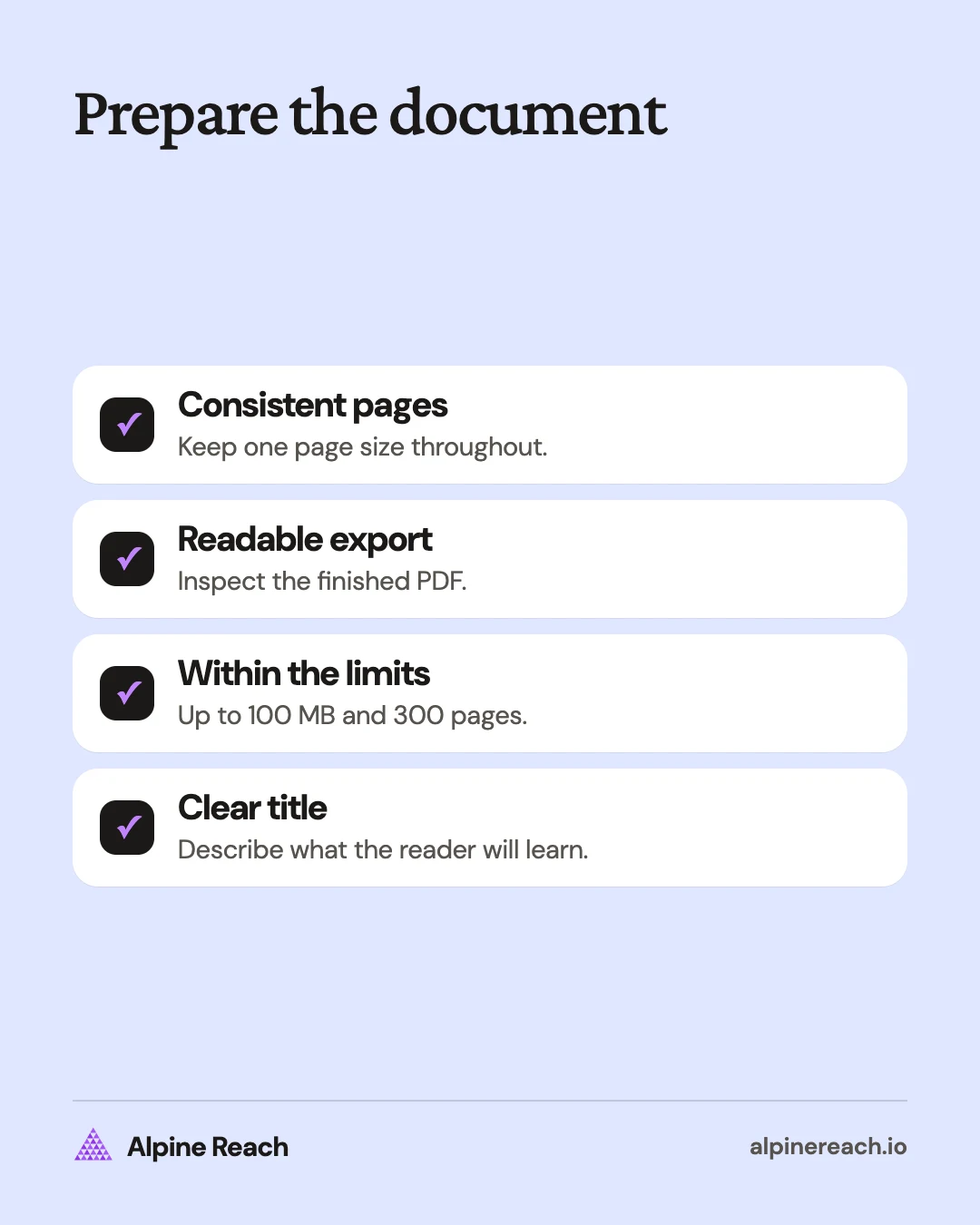
Before sharing, check the exported file for:
- Text that is cut off or replaced by unexpected symbols.
- Missing pages, repeated pages, or an incorrect sequence.
- Headings that no longer fit after export.
- Charts or examples whose labels are too small to read.
- Links that lead to the intended destination.
- Placeholder text, private information, or unlicensed material. Anyone who can see the post can download the document as a PDF, so remove anything you would not want saved.1
Ask whether the document deserves the extra production work. If the lesson fits more clearly in a text post, choose that format. For another document topic, consult the LinkedIn post idea list; for a recurring publishing plan, use the LinkedIn strategy guide.
FAQ
Is a PDF the only accepted LinkedIn carousel file?
LinkedIn also accepts PPT, PPTX, DOC, and DOCX for document posts. PDF is its recommended preparation choice when possible.
Do organic LinkedIn documents have the same limit as carousel ads?
No. The cited organic document limit is 300 pages, while paid carousel ads use 2 to 10 image cards.
Can I replace the PDF after posting?
LinkedIn says you can edit the title and description, but changing the document itself requires deleting the post and creating a new post.
General information. Platform features, limits and benchmarks change: check the cited page before you rely on a number.
References
- LinkedIn Help. Upload and share documents on LinkedIn. n.d. View source (accessed Nov 10, 2026).
- Buffer. 11 LinkedIn Carousel Examples (+ Post & Ad Ideas for 2026). 2026. View source (accessed Nov 10, 2026).
- LinkedIn Help. Document uploads on LinkedIn FAQ. n.d. View source (accessed Nov 10, 2026).
- LinkedIn. Carousel Ads Specifications. n.d. View source (accessed Nov 10, 2026).
- LinkedIn. Document Ads Specifications. n.d. View source (accessed Nov 10, 2026).