

In short
- LinkedIn offers text, image, video, poll, and document posting options.
- Regular LinkedIn posts have a limit of 3,000 characters.
- LinkedIn recommends a strong opening, short paragraphs, and a specific close.
In this article
To write a LinkedIn post, choose a specific reader, answer a useful question, and put the main point in the opening lines. Support it with an example or explanation, then close with a practical takeaway or a focused question.
Start with a reader and a reason to post
Write down what someone should understand or be able to do after reading. A freelance designer might explain how to give useful feedback. A founder might explain a product decision. A job seeker might share what a practice project taught them.
Keep the scope small enough to explain clearly. “Better marketing” is a subject. “How to turn a vague content request into a usable brief” is a post.
Before drafting, finish this sentence: “This is for someone who needs to ___, and the useful part is ___.” If you cannot fill the second blank, gather a concrete example before writing.
Need a starting topic? Choose from these 25 LinkedIn post ideas. For a recurring plan, use the LinkedIn content strategy worksheet.
Build an opening, body, and close
Give each part a job: the opening identifies the problem, the body explains your answer, and the close helps the reader use it. Treat this as an editing framework, with room for your own voice.
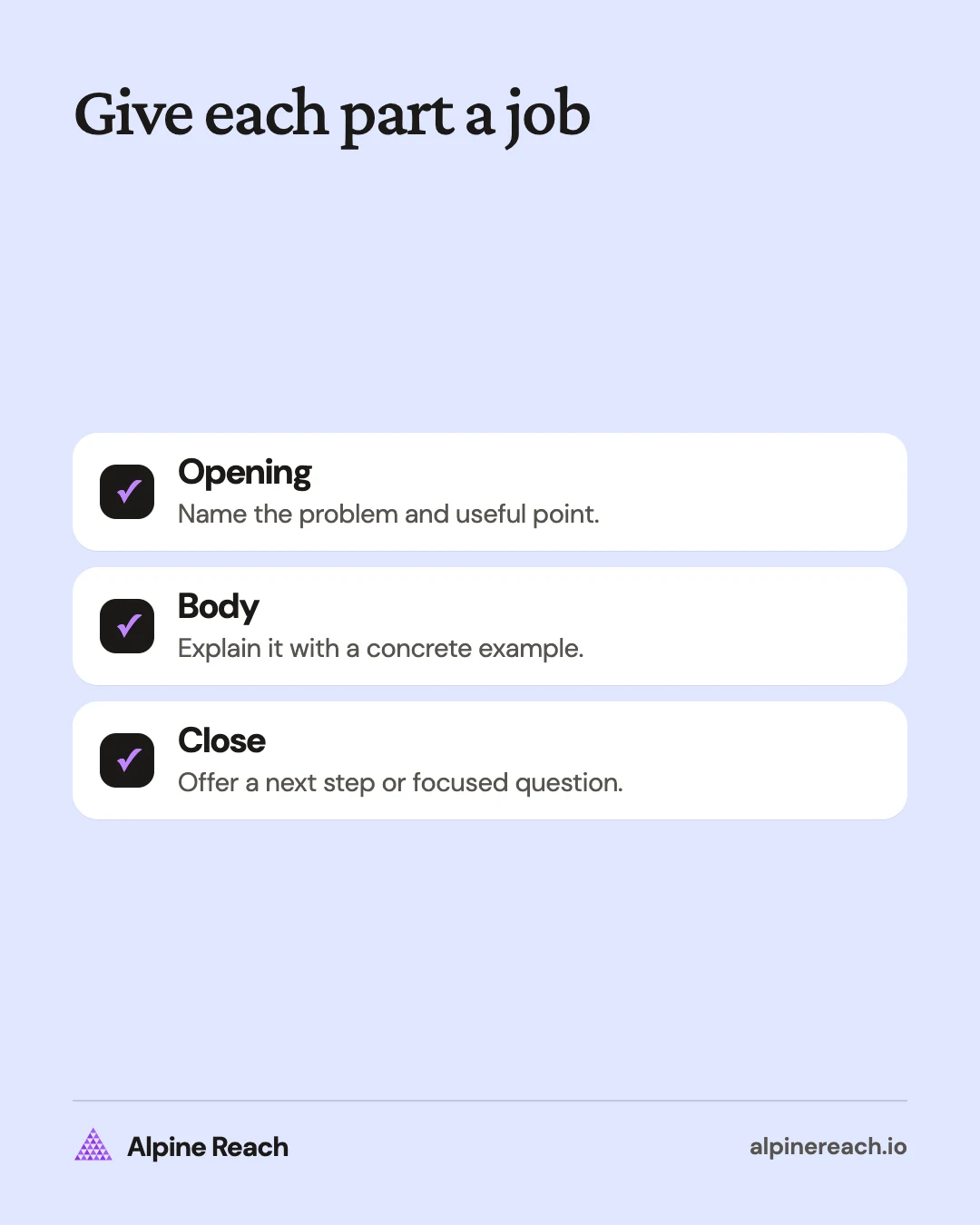
Opening: Put the useful point before the reader needs to expand the post with “see more.” LinkedIn's own writing guidance calls the first two lines of a post critical, recommends opening with a unique perspective or key takeaway, and suggests one to three sentence paragraphs.1
Try “A useful creative brief names the decision the reader needs to make.” Compare that with “I've been thinking a lot about creativity lately.” The first gives someone a reason to keep reading.
Avoid building an opening around suspense that the rest of the post cannot justify. If you have a finding, name it. If you have advice, say who it helps. Read the opening on its own and ask whether a stranger would know the subject.
Body: Explain the reasoning, then show the idea in use. For a how-to, give the actions in order. For an opinion, state your evidence and the conditions where your view may not apply. For a work lesson, describe what changed in your thinking.
Use paragraph breaks at changes of thought. Remove sentences that repeat the opening without adding information. Replace “communication is essential” with the exact message someone could send.
If the post credits a person or company, mention them with @. LinkedIn notes that a mention sends them a notification that leads to the post.1
Close: End with an action the reader can try or a question they can answer from experience. LinkedIn recommends a specific call to action, including focused questions and requests for examples.1
“Which part of a brief usually needs clarification on your team?” is easier to answer than “Thoughts?” You can also end with the takeaway if a question would feel added only to solicit replies.
Choose a format that serves the idea
LinkedIn Help lists text, photos, video, polls, and documents among its posting options. On desktop, begin with Start a post; on mobile, use Post. Additional options sit under the More menu.2
| Format | A useful reason to choose it | What to prepare |
|---|---|---|
| Text | Explain a decision, lesson, or opinion | A clear point and a concrete example |
| Image | Show an object, diagram, or piece of work | A readable visual with explanatory text |
| Document | Teach a sequence or share a reference | A coherent set of pages and a descriptive title |
| Video | Demonstrate a task or explain something aloud | A focused demonstration with readable captions |
| Poll | Ask about a bounded choice | Clear options and a reason to discuss the answers |
These are editorial use cases, not a ranking of formats. A text post can explain something simple without a supporting graphic. A document is useful when the page sequence helps the explanation; see the LinkedIn carousel size and upload guide.
Choose the format after you know what you want to say. Otherwise, you may spend time making slides for an idea that needs a short paragraph.
How long should a LinkedIn post be?
As of November 2026, LinkedIn Help sets a regular post's limit at 3,000 characters. It directs writers whose text exceeds that limit to the article publishing option.3
A character ceiling is not a target length. Use the space needed to deliver the point, then remove repeated setup, unnecessary background, and generic closing lines. A practical tip may need little explanation. A tradeoff may need context before the advice makes sense.
Keep a link when the source or destination is necessary to understand or use your post. Cite any external figure in the post itself. Do not expect a reader to accept an impressive number with no way to inspect it.
Three example LinkedIn posts, annotated
The examples below are made up. Adapt the structure with facts you can support.
A freelance writer explains a process
A content brief needs a decision before it needs a word count.
For a guide to choosing project software, I would start with this question: “What does a small team need to check before choosing a tool?”
Then I would list the constraints: who uses it, what work it supports, and what would make it unsuitable.
That gives the outline a purpose. The length comes after the questions are clear.
What question do you ask before accepting a brief?
Opening: Names a specific judgment. Body: Uses a concrete hypothetical task to explain it. Close: Invites a relevant professional answer. If you use a first-person version, make sure it describes your actual process.
A founder shares a design tradeoff
A product setting should explain the consequence of changing it.
Imagine a notification setting labeled “Digest.” A user still needs to know what arrives and when.
I would test a label such as “Send a summary of new comments” beside a short explanation of the delivery schedule.
The question for a usability check: can someone predict what happens before switching it on?
Opening: States the principle directly. Body: Makes the advice visible through an invented interface example. Close: Offers a test the reader can use. It makes no claim that the hypothetical change improved a real product.
A job seeker shares a learning exercise
I'm practicing how to explain spreadsheet checks to someone who did not build the file.
For a sample budget, I would document the source of each input, mark assumptions, and explain how to check totals.
My next exercise would be to ask another person to follow the instructions without my help.
What would you include in a handoff note?
Opening: Names a skill being practiced. Body: Shows the work involved. Close: Requests specific advice. Replace this example with a real exercise before presenting it as your experience.
Check the draft and publish deliberately
Use this checklist before copying your draft into the composer:
- The opening names the subject and gives a useful point.
- Each paragraph adds an explanation, example, or action.
- Personal experience is true and made-up examples are labeled as examples.
- External claims have a source readers can inspect.
- Visuals are legible at phone size and add something to the text.
- The ending fits the post's purpose and invites an answer you want to read.
In the composer, confirm the audience and comment settings before publishing. LinkedIn lets you select who can see a post and who can comment.3
You can also save a draft and finish it on another device, or schedule the post for a specific date and time from the composer.3
Use the best time to post on LinkedIn guide to choose a time to test. Save the questions people ask afterward. They can show you where the explanation needs work and what your next post should answer.
FAQ
How should I write my first LinkedIn post?
Explain a specific task you know or are learning, give a concrete example, and ask a relevant professional question. Label practice examples as examples.
Does every LinkedIn post need an image?
Choose an image when it shows something the text cannot explain as clearly. Text is also a supported post format.
Should I write an article instead of a post?
Consider an article when your explanation exceeds the regular post limit and cannot be shortened without losing useful context.
General information. Platform features, limits and benchmarks change: check the cited page before you rely on a number.
References
- LinkedIn. How to Write an Engaging Post in Your LinkedIn Feed. 2024. View source (accessed Nov 10, 2026).
- LinkedIn Help. Get started with posting on LinkedIn. n.d. View source (accessed Nov 10, 2026).
- LinkedIn Help. Post and share updates. n.d. View source (accessed Nov 10, 2026).