
In short
- Start with a goal before scheduling individual posts.
- Track the copy, assets, publishing dates, and approval status together.
- Analyze results and update the next calendar instead of repeating it unchanged.
In this article
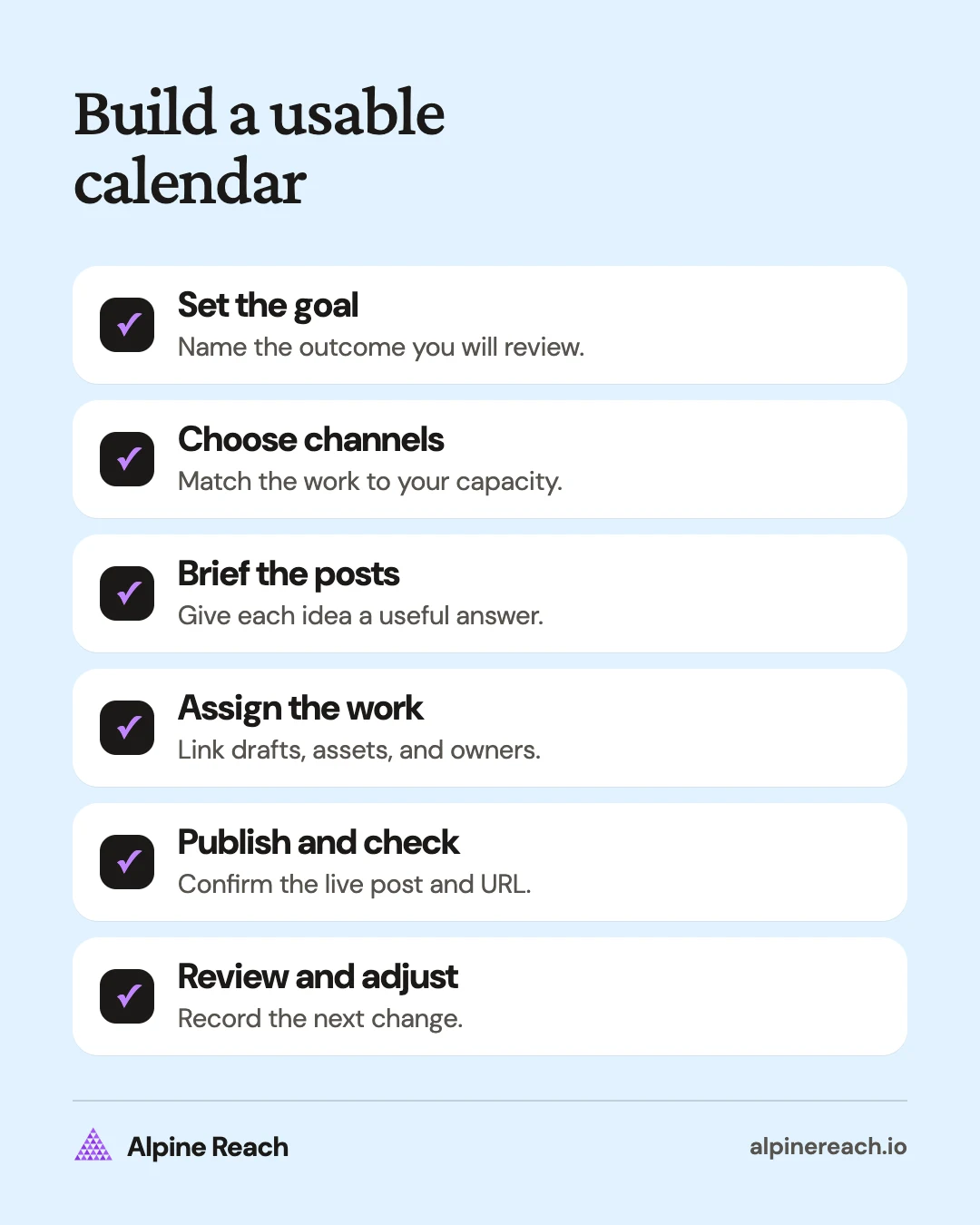
To create a social media content calendar, choose what you want your posts to achieve, decide which channels you can support, and give each post a publishing slot and an owner. Use a shared table to track the draft, assets, approval, and published link, then review what happened before planning the next week.
1. Decide what the calendar needs to accomplish
A social media content calendar is a schedule of upcoming posts, organized by publishing date and platform. Hootsuite's calendar guide includes copy, creative assets, content pillars, and approval status alongside those dates.1 Hootsuite's process also starts with a social media strategy before you plan the posting schedule.1
Hootsuite separates two terms you will see used interchangeably: a content calendar maps marketing content across every channel, including blog posts and email, while a social media calendar tracks what publishes on each social platform and who owns each step.1
Start with a sentence you can use to judge a post idea: "This month, help independent shop owners understand our inventory service and invite interested owners to request a walkthrough." This is a goal, not a result or a forecast.
Choose a useful sign of progress. For that goal, you might track relevant questions, visits to the service page, and requests from suitable businesses. A post that receives lots of reactions but no interest from shop owners needs a different diagnosis from a post that nobody sees.
Before you fill dates, separate the decisions:
- Strategy: Who should you reach, why should they care, and which channels will you use?
- Content plan: Which themes and formats will support the goal this month?
- Calendar: Which specific post goes out when, and who prepares it?
If those first decisions are missing, work through how to create a social media strategy and the one-page content plan. You do not need a presentation deck to begin. A short written direction is enough for a first calendar.
2. Choose platforms and a cadence you can maintain
List the channels you actually have time to serve. For each one, write the audience, the format you can produce, and who will reply after publication. Avoid adding a channel just because you have an account there.
Then look at production capacity. Count research, writing, recording, editing, accessibility checks, approval, and replies. A finished video takes more work than the time spent pressing Record. YouTube's scheduling guidance specifically asks creators to consider sustainability and time to produce.2
For a solo consultant, a first week could contain a written explanation and a visual checklist on the same channel. Treat that as a workload choice, not a platform recommendation. If both require original research, reserve time for it before adding more slots.
Use the posting frequency guide when you want platform guidance and dated research. Keep a lighter fallback schedule for weeks with travel, delivery deadlines, or time off. The calendar should make that tradeoff visible.
Add a time zone next to publishing times. Pick a time you can test, rather than describing an arbitrary hour as the best time for everyone. Leave space for replies and current questions instead of filling every available day.
3. Turn recurring topics into specific post briefs
Choose content pillars, meaning recurring subjects your audience needs help with. For a freelance designer, these might be choosing a designer, preparing a project brief, and understanding design decisions.
Turn each pillar into a question you can answer in a post:
| Pillar | Reader question | Specific post brief | Next step |
|---|---|---|---|
| Preparing a brief | What should I send before asking for a quote? | Show a blank project brief and explain each field | Save the checklist |
| Design decisions | Why does this page feel hard to read? | Annotate a fictional page with competing headings | Try the hierarchy check |
| Choosing help | Is my project ready for a designer? | Explain the difference between missing content and visual problems | Read the service scope |
These examples are made up.
Write the useful answer before choosing a format. An explanation that needs a sequence might become a carousel, meaning a post with several swipeable slides. A demonstration might become a video. Do not force every idea into whichever format happens to be easiest to schedule.
You will see rules of thumb such as 80/20 or 70/20/10 for splitting helpful and promotional posts. They are marketers' conventions, not platform rules, so treat any split as an assumption to test against your goal.
Keep an idea backlog separate from the publishing queue. An interesting headline with no outline, source, or asset is an idea, not a ready post. Only assign a firm slot when you know what it will take to finish.
4. Copy this weekly content calendar template
Use each row for a single platform version of a post. To use it free, paste the table into Google Sheets or Excel and add one column per field you track. This example week is a starting layout, not a recommended frequency. Its publishing times are in the audience's time zone and are placeholders to test.
| Publish slot | Channel and format | Pillar and post brief | Owner and draft due | Asset or copy record | Status and next step |
|---|---|---|---|---|---|
| Monday, 10 a.m. ET | LinkedIn text | Project briefs: explain what to send before requesting a quote | Writer, previous Thursday | Brief checklist draft | Ready for review; ask readers to save |
| Wednesday, 10 a.m. ET | LinkedIn document | Design decisions: annotate a fictional page | Designer, Monday | Page hierarchy slides | Drafting; invite readers to try the check |
| Friday, 10 a.m. ET | LinkedIn text | Choosing help: explain the service scope | Writer, Wednesday | Scope explainer draft | Idea; direct interested readers to scope page |
| Flexible | No channel assigned | Answer a relevant question that arrives this week | Writer, when selected | Question backlog | Open; publish only if useful and ready |
For your working version, turn the asset and copy records into links. Add a reviewer, review deadline, destination URL, published URL, and result field. If a task has no owner or the asset is still missing, keep it out of the ready queue.
Use specific statuses: Idea, Drafting, Ready for review, Approved, Scheduled, Published, and Paused. Define what each means. "Approved" should mean someone checked the final version; "Published" should mean you opened the live post and recorded its URL.
Keep production deadlines separate from publishing dates. If an image needs review on Thursday for a Monday post, Thursday is the deadline that protects the schedule. For more filled layouts, use these weekly and monthly content calendar examples.
5. Pick a tool for the workflow you have
Start with the simplest place where everyone can find the current version. You can use the table above in a spreadsheet without buying a dedicated publishing tool.
| Option | How to use it | Tradeoff to consider |
|---|---|---|
| Spreadsheet | Keep a row per post and link to the draft and asset | Decide who maintains statuses and checks the published post |
| Notion database | Store the brief in each item and show posts by publishing date | Agree which date property controls the calendar |
| Social media scheduler | Put approved platform versions into a publishing queue | Check support for your exact account and format |
Notion's calendar view can display a database using a date property, and you can select which date property the view uses.3 Keep a separate draft deadline if you want to distinguish making the post from publishing it.
Buffer's publishing page describes a queue with recurring slots or a specific publishing date and time.4 It also distinguishes automatic publishing from notification publishing, where you finish the post in the platform's app.4 Confirm that distinction for your intended format before you rely on a scheduled slot.
Choose based on the missing step. If writing is the bottleneck, a more elaborate calendar will not write the brief for you. If approval is the bottleneck, define a reviewer and deadline. If manual publication is the problem, check scheduling support.
6. Review the week and update the next one
Schedule a short review after the week ends. Hootsuite's process includes analyzing performance and updating the content strategy after scheduling.1
Compare the posts with the goal you wrote first. Record what published, what slipped, which questions came back, and whether the intended next step happened. For a small account, a few posts may not support a confident conclusion. Keep observations separate from explanations you still need to test.
Choose a concrete adjustment. If a useful explanation drew relevant questions, plan a follow-up that answers one of them. If a post missed its date because the asset was late, move the asset deadline earlier. Those are different problems and need different changes.
Keep the original row when you reschedule a post. Update the slot and add a reason so the team can tell a deliberate change from an overlooked task. Pause an outdated offer instead of publishing it to protect a streak.
Before closing the review, make sure the next scheduled post has final copy, an accessible asset, a checked destination, an owner, and the right publishing status. That gives you a usable next step whenever you reopen the calendar.
FAQ
Can I start a content calendar without a scheduling tool?
Yes. Copy the weekly table into a spreadsheet, link the draft and assets, and assign publication to an owner. Consider a scheduler when the publishing step becomes difficult to maintain.
What should I do when a planned post is no longer relevant?
Pause the post, record why it moved, and check whether it can be updated. Leave the slot empty if you do not have a useful, approved replacement.
Do I need a different calendar for every platform?
You can keep a shared calendar, with a separate row for each platform version. That makes copy, assets, timing, and review status clear without maintaining competing schedules.
General information. Platform features, limits and benchmarks change: check the cited page before you rely on a number.
References
- Hootsuite. How to create a social media calendar in 2026. 2026. View source (accessed Nov 10, 2026).
- YouTube Help. Upload schedule tips. n.d. View source (accessed Nov 10, 2026).
- Notion Help. Calendar view. n.d. View source (accessed Nov 10, 2026).
- Buffer. Social Media Scheduler & Planner for Everyone. n.d. View source (accessed Nov 10, 2026).