
In short
- ChatGPT, Claude, Gemini, and Perplexity cover idea development or research; their access and limits differ.
- Canva and Adobe Express combine visual creation with AI features, while Descript, OpusClip, and Riverside offer recording repurposing.
- Buffer includes AI Assistant on its Free plan. Later's Caption Writer requires a paid plan.
- Meta, TikTok, and YouTube set different rules for AI labels and disclosure; inspect the final media before posting.
In this article
Choose AI tools for social media content creation by the task you need help with: researching an idea, drafting copy, making visuals, editing video, repurposing material, or preparing posts to publish. Start with the part you struggle to finish, then compare the named tools below by their documented features and access limits.
This list describes 17 tools and native features, grouped by job. Features and free-access details are checked as of November 2026. A free account does not necessarily include every AI feature. For current costs, follow the vendor pricing references below and check the vendor's pricing page before subscribing.
Ideas and research: general AI assistants
Choose an assistant when you need to explore a subject or organize your own material. Decide which question the post should answer before asking for variations.
1. ChatGPT
Job: Brainstorming and editorial feedback.1 OpenAI describes using ChatGPT to discuss ideas, find words, and review structure.1 For social content, try it with your own notes and a specific reader question. Check that suggested angles reflect an opinion you actually hold.
Access: A free tier exists.2 File uploads, image generation, and other tools have separate usage limits.2
2. Claude
Job: Exploring and developing written ideas.3 Anthropic's getting-started guide includes analysis and creative writing among Claude's uses.3 Use it to discuss possible explanations before choosing a post angle. Check whether the proposed argument still matches your original point.
Access: A free plan exists, with session usage limits and message availability that varies with demand.3
3. Google Gemini
Job: Brainstorming possible directions.4 Google's examples include generating ideas and summarizing arguments.4 Apply that to a topic you already understand, then choose an angle your audience needs. Check suggestions against your source material before treating them as facts.
Access: Google lists a Free option with a Google Account; higher subscriptions provide more usage and features.5
4. Perplexity
Job: Finding background sources.6 Perplexity describes an answer engine that searches the web and provides cited answers, with core search available free.6 Use it to locate documents worth reading. Open each original page and check that it supports the specific statement you plan to publish.
Writing posts and captions
Choose writing help when the idea is settled but the wording needs work. Keep your brand voice guide beside the draft, and use the Instagram caption ideas for possible structures.
5. Jasper
Job: Drafting captions and adapting existing written content into social posts or video scripts.7 Jasper also offers Brand Voice settings based on supplied content.7 Check the draft against approved writing samples to judge how closely it follows your voice.
Access: Jasper advertises a Pro free trial followed by a paid subscription.8 Treat that as a trial, not an ongoing free plan; see its pricing page.
6. Grammarly
Job: Generating text for a specific format.9 Grammarly lists AI tools for Instagram captions and LinkedIn posts.9 Consider it when you need a written version of an already approved idea. Check that polished wording has not changed the claim or added an experience you never had.
Access: Its Free plan includes a limited monthly AI-prompt allowance.10 Compare the allowance on Grammarly's plans page before batching work.
Check LinkedIn's native option separately. As of November 2026, LinkedIn's help page says its AI-powered Page-post writing tool is unavailable.11 That notice concerns Page posts.11 Do not assume an older tutorial describes what your account offers today.
Images and graphics
Choose a design tool when you need an asset you can inspect and revise. Start with what the image should explain, and check details such as product shape, lettering, and recognizable people before using it.
7. Canva
Job: Creating social designs, generating images and text, and refining content within its design environment.12 Canva's help page lists these capabilities.12 Use it when layout and visual editing belong in the same task.
Access and limit: Canva Free includes some AI features with limited usage.12 Other features require a paid plan, so check the exact tool you need.12
8. Adobe Express
Job: Generating images or text effects and inserting or removing objects in a design.13 Adobe lists these generative features in its Express plan comparison.13 Use it for a visual draft you intend to inspect and edit.
Access and limit: Adobe Express Free includes limited AI access and free daily generations for selected features.13 Check the plan comparison for the feature and model you want.
9. Meta AI and Instagram's native effects
Job: Generating or editing images, including creative effects for Instagram Stories.14 Meta documents these uses and notes country-dependent availability.14 Check whether the effect is enabled for your account before building a post around it.
Access: Meta says everyday Meta AI use remains free, while subscriptions provide more media generation and additional use of features such as Restyle.15
Video editing and repurposing long content
Separate finishing a short video from extracting clips out of a longer recording. For either job, watch the final export with sound before deciding it is ready.
10. CapCut
Job: Adding subtitles to spoken video.16 CapCut's Auto Caption feature uses AI speech recognition, and you can edit the resulting text and timing.16 Check names, specialist terms, and words obscured by background noise.
Access check: The cited caption guide does not establish a free allowance.16 CapCut warns that some caption functionality includes Pro features that can trigger an upgrade requirement at export.17
11. TikTok Symphony Creative Studio
Job: Creating TikTok-focused video assets, scripts, captions, and translated or dubbed video.18 TikTok describes Symphony as supporting organic and paid content.18 Consider it for producing a new asset rather than simply cutting an interview.
Access and limit: TikTok calls it a free creation tool, but advanced video generation uses credits whose allocation can depend on advertiser account linkage and spending.19 Check eligibility before planning a batch.
12. YouTube's AI creation tools for Shorts
Job: Generating image or video backgrounds and standalone clips inside Shorts creation tools.20 Use them when the missing asset is a scene for a Short.
Access and limit: YouTube describes experimental features with location restrictions and an English device-language requirement.20 The help page does not establish a separate free-plan allowance.20 Check availability in your app.
Repurposing: turn a recording into clips or posts
The next tools fit an existing interview, webinar, tutorial, or podcast. Check every excerpt against the surrounding conversation so it preserves the speaker's meaning.
13. Descript
Job: Editing video through text and using AI to create clips, highlights, or promotional social text.21 Descript lists these capabilities in its plan comparison.21 Consider it when you want to work from the recording's transcript.
Access and limit: A Free plan exists, with limited AI functionality.21 Check media hours, AI credits, and export allowances on the pricing page before importing a series.
14. OpusClip
Job: AI clipping, automatic reframing, and captions for short video.22 Its Free plan includes these functions with a monthly credit allowance.22 Consider it when the source recording is ready and the next task is selecting excerpts.
Limit: The Free plan adds a watermark, excludes editing, and has an export-availability deadline.22 Check those restrictions on the pricing page before relying on the output.
15. Riverside Magic Clips
Job: Identifying highlights in a recording and turning them into social clips, with controls for duration, dimensions, layout, and captions.23 Consider it when your material starts as a recorded conversation.
Access and check: Riverside describes Magic Clips as free.23 Confirm the available export settings in your account and watch whether the selected passage forms a complete thought.
Scheduling tools with AI writing features
Choose a scheduler for the publishing workflow you need, then assess its AI features separately. Check the supported account types, formats, and approval process before moving finished posts into it.
16. Buffer
Job: Preparing copy within a publishing workflow.24 Buffer's AI Assistant generates ideas, rewrites posts, and summarizes long content into short posts.24 Buffer distinguishes that assistant from its core scheduling features.24 Review the copy before adding it to the queue.
Access and limit: Buffer's Free plan includes AI Assistant, but has limits on connected channels and queued posts.25 Its pricing page separates those limits from paid features.25
17. Later
Job: Drafting or rephrasing captions while preparing a post.26 Later's Caption Writer generates text from a prompt; its help page lists English-only support and device differences for rephrasing.26 Check those requirements if you work across languages or devices.
Access and limit: Later has a Free plan, but Caption Writer requires a current paid plan and uses AI credits.27 The free account does not include those AI credits.27
Choose a small stack by the task you delay
Start with one tool for the task you regularly leave unfinished. If drafting is the problem, choose writing help. If making a visual is the problem, choose design or editing help. If extracting useful moments from a recording is the problem, choose repurposing help.
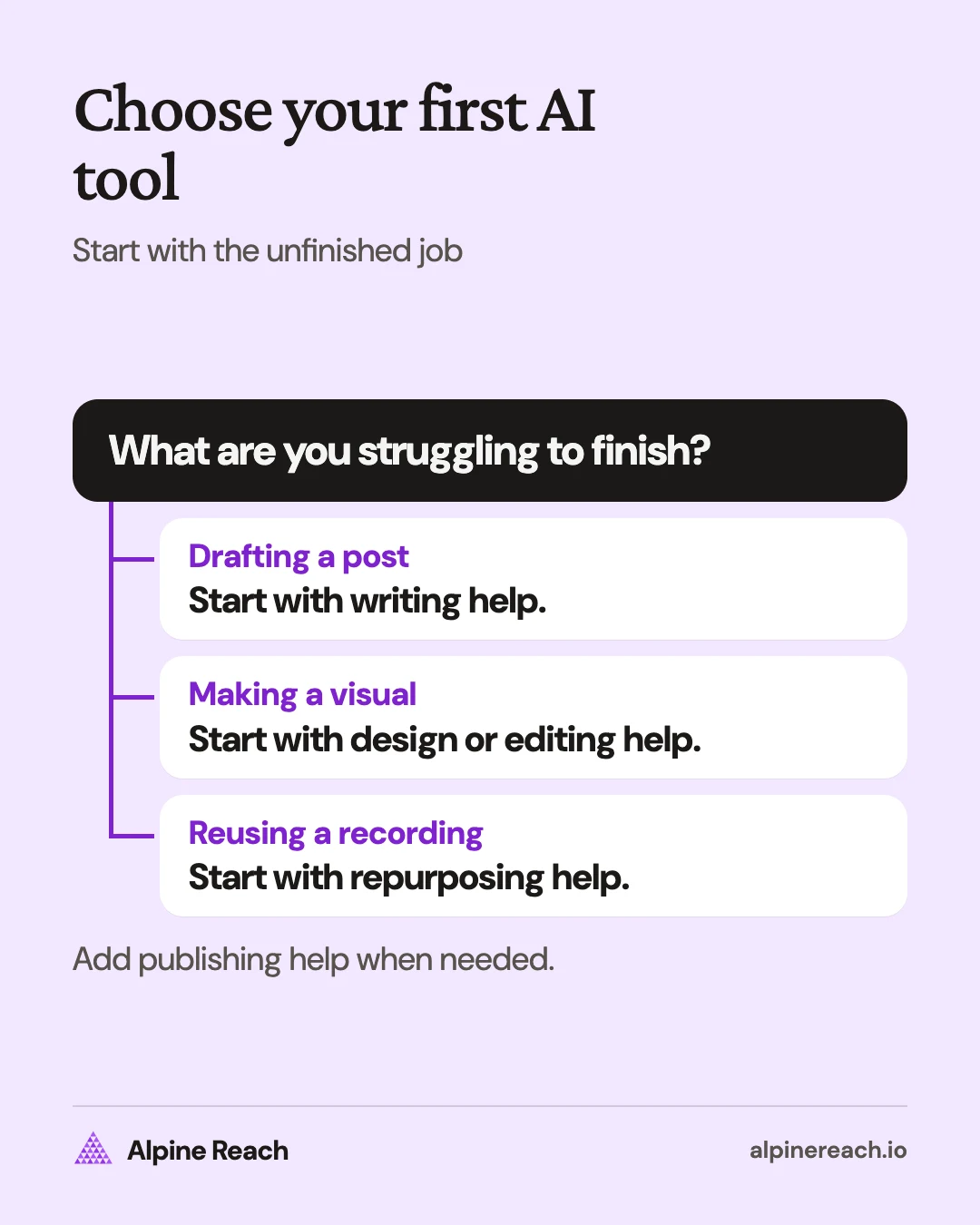
Keep tools that already handle the other jobs adequately. For example, a freelancer writing LinkedIn posts may start with a general assistant and publish manually. A creator with recorded interviews may begin with a clipping tool. These are suggested starting choices, not measured rankings.
Before adding another subscription, take a real piece of your own material through the full job. Check the editable output, the export, the time spent correcting it, and whether you would publish the result. Add a scheduler when the publishing workflow itself needs attention. Use your content plan to decide what deserves production time.
Platform AI labels and your final review
As of November 2026, Meta, TikTok, and YouTube describe different disclosure requirements. Review the actual image, video, and audio you will upload against the destination platform's rule.
- Meta: Meta applies an “AI info” label based on detected signals or disclosure.28 It requires people to use its disclosure tool for organic content containing digitally created or altered photorealistic video or realistic-sounding audio.28
- TikTok: Creators must label AI-generated content containing realistic images, audio, or video.29 TikTok may also apply an automatic label, including for content with supported provenance metadata; that automatic label cannot be removed.29
- YouTube: Disclose realistic synthetic or meaningfully altered content, including fabricated realistic scenes or making a person appear to say something they did not say.30 Its help page also requires disclosure for AI-created music that is the video's main focus.30 Production assistance such as ideas, scripts, or caption creation is listed among examples that do not require disclosure.30
YouTube says its own generative creation tools disclose AI use automatically for creators.20 Check each destination independently when exporting an asset to another platform.
Before posting, verify factual claims against original sources, check permission and applicable terms for images, music, voices, and likenesses, and edit the wording into your own voice. Review the final media and disclosure settings together. For the full drafting and review process, follow how to use AI for social media content.
FAQ
Can I start creating social content with free AI tools?
Yes. ChatGPT, Claude, Gemini, Canva, and Buffer document free access, with different feature and usage limits. Check the exact task: a free account does not mean every AI function or export option is included.
Does a free Later account include AI caption writing?
Later lists a Free plan, but its current plan guide excludes Caption Writer and AI credits from Free. Caption Writer requires a current paid plan.
Which tools can turn a recorded interview into short social clips?
Descript, OpusClip, and Riverside Magic Clips document clip creation or highlight selection from existing media. Compare editing, export, credit, and watermark restrictions before choosing.
Does every use of AI require a YouTube disclosure?
YouTube distinguishes realistic synthetic or meaningfully altered content from production assistance such as ideas, scripts, or caption creation. It also requires disclosure for AI-created music that is the video's main focus. Review the actual asset against its examples.
General information. Platform features, limits and benchmarks change: check the cited page before you rely on a number.
References
- OpenAI. Writing with AI. n.d. View source (accessed Nov 14, 2026).
- OpenAI. ChatGPT Free Tier FAQ. n.d. View source (accessed Nov 14, 2026).
- Anthropic. Get started with Claude. n.d. View source (accessed Nov 14, 2026).
- Google. Learn how to use Gemini in life, school, and work. n.d. View source (accessed Nov 14, 2026).
- Google. Get more out of Gemini. n.d. View source (accessed Nov 14, 2026).
- Perplexity. AI for the Curious. n.d. View source (accessed Nov 14, 2026).
- Jasper. AI for Social Media. n.d. View source (accessed Nov 14, 2026).
- Jasper. Plans & Pricing. n.d. View source (accessed Nov 14, 2026).
- Grammarly. AI writing tools for effortless writing. n.d. View source (accessed Nov 14, 2026).
- Grammarly. Grammarly Prices and Plans. n.d. View source (accessed Nov 14, 2026).
- LinkedIn. AI-powered tool for LinkedIn Page posts: No longer available. n.d. View source (accessed Nov 14, 2026).
- Canva. Get started with Canva AI. n.d. View source (accessed Nov 14, 2026).
- Adobe. Pricing: Compare Free & Premium Plans. n.d. View source (accessed Nov 14, 2026).
- Meta. Introducing Muse Image: Image Generation Built for Your World. 2026. View source (accessed Nov 14, 2026).
- Meta. Introducing Meta One: A Subscription Service With More Features and AI to Create, Connect, and Stand Out. 2026. View source (accessed Nov 14, 2026).
- CapCut. How do I recognise subtitles? n.d. View source (accessed Nov 14, 2026).
- CapCut. Why Am I Prompted to Join CapCut Pro as a Standard User? n.d. View source (accessed Nov 14, 2026).
- TikTok. About Symphony Creative Studio. 2026. View source (accessed Nov 14, 2026).
- TikTok. About Symphony credits. 2026. View source (accessed Nov 14, 2026).
- YouTube. Create content for Shorts using AI-generated features. n.d. View source (accessed Nov 14, 2026).
- Descript. Descript Pricing: Plans for Every Creator, Free to Start. n.d. View source (accessed Nov 14, 2026).
- OpusClip. Pricing. n.d. View source (accessed Nov 14, 2026).
- Riverside. Video Clipper Magic Clips. n.d. View source (accessed Nov 14, 2026).
- Buffer. Social Media AI Tools for Content Creation. n.d. View source (accessed Nov 14, 2026).
- Buffer. Pricing. n.d. View source (accessed Nov 14, 2026).
- Later. Later's Caption Writer. 2026. View source (accessed Nov 14, 2026).
- Later. Reference Guide: Plan Availability for Later Social. 2026. View source (accessed Nov 14, 2026).
- Meta. How Meta Is Preparing for the 2026 US Midterm Elections. 2026. View source (accessed Nov 14, 2026).
- TikTok. About AI-generated content. n.d. View source (accessed Nov 14, 2026).
- YouTube. Disclosing use of GenAI content. n.d. View source (accessed Nov 14, 2026).