

In short
- Repurposing adapts useful existing material into a fresh format.
- Keep LinkedIn text posts within the platform's published character limit.
- Check the destination's format and duration requirements before exporting a short video.
In this article
- Choose a source worth adapting
- Extract the useful parts before you repurpose content for social media
- Write a LinkedIn post around a professional decision
- Build an Instagram carousel as a visual checklist
- Turn the point into a short video and a newsletter
- Check accuracy and measure each adaptation
- FAQ
- References
Content repurposing adapts useful existing material into a new format, such as turning part of an article into a visual explanation.1 Keep the underlying point accurate, then change the opening, detail, and presentation so the new post answers a complete question on its own.
Search Engine Land's guide gives two reasons to do it: you do not have to build every post from scratch, and the material can reach people on a platform where they never saw the original.1
Choose a source worth adapting
Start with a piece you understand and have permission to reuse. It might be a long article, a recorded demonstration, a newsletter, or a substantial social post. Check the facts and remove outdated instructions before extracting anything. If your source is a long video, clipping tools can help: TikTok's Smart Split, announced in October 2025 for TikTok Studio Web, takes uploads over one minute long and cuts them into shorter clips.2
Choose material that has a clear audience question and something concrete to teach. Useful replies, relevant inquiries, and questions from your work can help identify what deserves another explanation. A large view count alone does not tell you which section to adapt.
For this worked example, imagine a freelance designer has written a long guide called “How to prepare a useful design brief.” Its main points are:
- Name the decision the design needs to support.
- Describe the audience and where the design will appear.
- Gather the wording and materials already approved.
- Identify the person responsible for consolidated feedback.
- Clarify the delivery requirements before work starts.
The source and the posts below are made-up examples. The lesson is how to keep the source's meaning while changing its presentation.
Extract the useful parts before you repurpose content for social media
Give each adaptation its own job. A text post can explain a decision, a carousel can organize a checklist, a short video can demonstrate a change, and an email can help the reader apply the lesson.
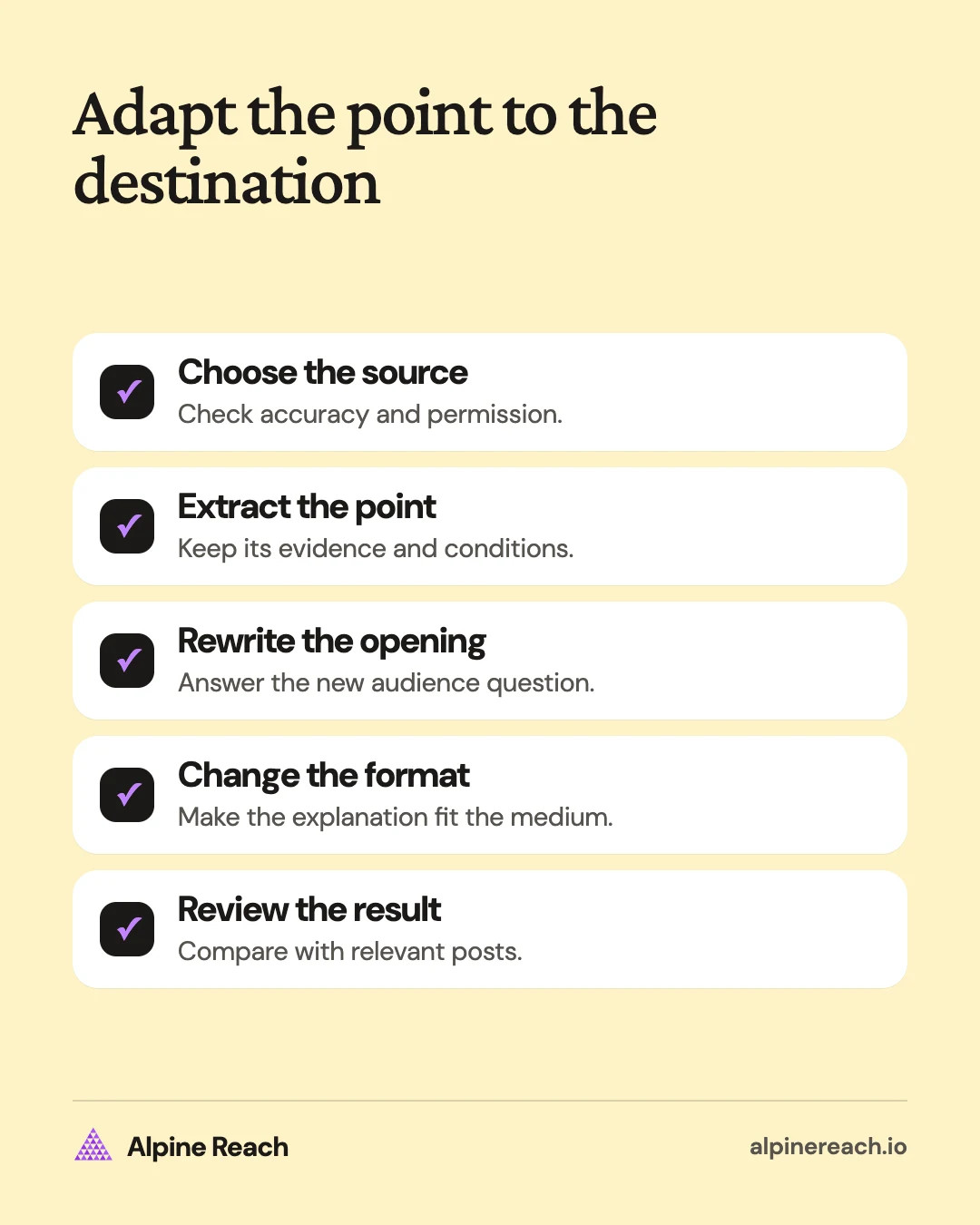
- Write the source's main point. Here: a useful brief supplies decisions and inputs, not just a visual preference.
- Separate complete ideas. “Who provides feedback?” can stand alone. A paragraph that depends on an earlier caveat may need that caveat carried with it.
- Choose an audience question for each version. Avoid giving every channel the same opening merely because it appears at the top of the source.
- Keep the supporting material attached. Record the original section and any evidence or permissions the adaptation needs.
- Draft for the destination. Decide what someone will read, swipe through, or watch before polishing the wording.
Use a small working table:
| Destination | Question to answer | Part of the source to use |
|---|---|---|
| LinkedIn text | Why can a vague brief slow the start? | The decision and missing inputs |
| Instagram carousel | What should I collect before sending a brief? | The preparation checklist |
| Short video | What makes a brief more useful? | A sample before-and-after explanation |
| Newsletter | What can I improve in my next brief? | The checklist plus a practical exercise |
The goal is a useful adaptation for each audience. There is no requirement to turn every source into every format. If the material has no clear visual demonstration, a text explanation may be a better choice than a video.
Write a LinkedIn post around a professional decision
For a text post, choose a clear opening, explain the consequence, and give a useful action. As of November 2026, LinkedIn's help page lists a limit of 3,000 characters for a post.3 Treat that as a ceiling, then use the space the explanation needs.
Here is a draft adapted from the brief guide:
A mood board does not tell a designer which decision the work needs to support.
Say your team wants a new landing page. Before discussing visual references, write down who the page is for and what they need to understand.
Then gather the approved wording, the assets you can use, and the name of the person collecting feedback.
Those inputs give the project a clearer starting point. Visual references can still help, but they have a specific job: showing a preference you can explain.
Which part of preparing a brief usually needs the most clarification on your team?
The post keeps a specific point from the long guide. It does not attempt to squeeze in every section. For help refining the opening, use the LinkedIn writing guide.
Build an Instagram carousel as a visual checklist
Use a sequence of slides with a clear reading order and a short caption that adds context. Choose one orientation for the whole carousel, since Instagram applies it to every slide, then keep the type readable on a phone and preview the crop.4
The following five-slide outline is an editorial choice for this example, not a platform maximum:
| Slide | Suggested copy | Visual treatment |
|---|---|---|
| Opening | Before you send a design brief, collect the decisions behind it. | A simple brief cover |
| Audience and purpose | Who is it for, where will it appear, and what should they understand? | A labeled audience note |
| Approved materials | Gather the wording, images, and assets you can actually use. | A sample folder with invented names |
| Feedback | Name the person who will collect and consolidate comments. | A simple feedback checklist |
| Final check | Can the designer see the purpose, inputs, feedback owner, and delivery needs? | The completed sample brief |
Suggested caption: “A useful brief gives the work a starting point. Use this checklist to see which inputs are ready and which decisions still need an owner. Adapt the fields to the project you are actually commissioning.”
The carousel organizes the source into a sequence someone can use. It does not repeat the LinkedIn post sentence by sentence. For the production steps, use the Instagram carousel guide.
Turn the point into a short video and a newsletter
For the video, demonstrate a change using a sample document with invented details. If YouTube Shorts is the destination, as of November 2026, its help page categorizes current square or vertical uploads up to three minutes long as Shorts.5 That is a format boundary, not the runtime this demonstration needs.
A short video script
Use these scenes as a draft, then cut repetition after recording:
| Scene | What you show | What you say |
|---|---|---|
| Opening | A sample brief that says “Make it feel modern” | “What would help a designer act on this brief?” |
| Audience | Add a clearly invented audience description | “Start with who the work is for and what they need to understand.” |
| Inputs | Open a folder labeled as a sample | “Then collect the wording and assets already approved for use.” |
| Feedback | Add a feedback-owner field | “Name who will consolidate comments before they reach the designer.” |
| Ending | Show the revised sample brief | “A useful brief gives the project decisions to work from.” |
Choose your own narration and footage. If you adapt the script for TikTok, recheck its composer and choose an opening that fits the audience there. Use the TikTok idea guide for other ways to demonstrate a task.
A newsletter with a practical next step
The email can add an exercise that does not appear in the social versions.
Subject: A clearer starting point for your next design brief
Preview: Check the inputs before collecting visual references.
Draft body:
Before your next design project, open the brief you plan to send and look for the audience, the purpose, and the materials already approved for use.
If a field is missing, name the decision it needs. “Make it modern” describes a preference. “Help first-time visitors understand what is included” gives the work a clearer purpose.
Try rewriting the opening paragraph of your brief around that purpose. Then check who will gather feedback and what the final delivery needs to include.
Keep the visual references that help explain a choice, and add a note about what you want the designer to learn from each reference.
Preview the email in your usual sending tool. Check the subject, mobile layout, and any links you add. Send only through your established audience and permission process.
Check accuracy and measure each adaptation
Before using a draft, read it beside the source. Confirm that shortening has not changed a condition into a general rule, turned an example into a fact, or separated a number from its source.
Then check each destination:
| Version | What to change from the source | What to review |
|---|---|---|
| Lead with a professional decision; keep a concise explanation | Character count, paragraph breaks, relevant question | |
| Turn the checklist into readable visual steps | Slide order, legibility, crop, caption context | |
| Short video | Show the change and narrate what matters | Pacing, captions, framing, destination duration rules |
| Newsletter | Add context and a useful action for the reader | Subject, preview text, mobile layout, links |
Identical cross-posting means carrying substantially the same copy and asset to another destination. Repurposing changes the presentation to serve the new context. Avoid treating a screenshot of the entire article as a finished carousel or placing the same long introduction at the start of every version.
Keep a note linking each adaptation to its source. Record the question, the intended response, and what happened. Compare a LinkedIn text post with comparable text posts and a video with comparable videos, using the same measure and a similar time since publication.
If the carousel produces questions about feedback, make a follow-up about feedback. If a script needs too much explanation to make sense, return to the source and choose a narrower point. For more material to adapt, use the content-ideas guide.
FAQ
Can I repurpose a short post instead of a long article?
Yes. Expand the underlying question into a demonstration, a checklist, or an explanation of the limits. Add useful detail rather than lengthening the same sentence.
Should every new post link to the original?
Use a link when the original supplies needed detail or a useful next step. The adapted post should still answer its own question without requiring a click.
Can I repurpose content that received little attention?
You can revisit an accurate, relevant idea when the original presentation was unclear or the audience was different. Treat the new version as a test; a format change alone does not establish that the subject will resonate.
General information. Platform features, limits and benchmarks change: check the cited page before you rely on a number.
References
- Search Engine Land. What is repurposing content? 2026. View source (accessed Nov 10, 2026).
- TikTok. New AI-powered tools to make it easier to create and share on TikTok. 2025. View source (accessed Nov 10, 2026).
- LinkedIn. Post and share updates. n.d. View source (accessed Nov 10, 2026).
- Instagram. Share a post with multiple photos or videos on Instagram. n.d. View source (accessed Nov 10, 2026).
- YouTube. Understand three-minute YouTube Shorts. n.d. View source (accessed Nov 10, 2026).